If you’re like most small business owners and solopreneurs, you don’t run your business on a single device. You’re checking your bank account on your phone during your morning coffee (affiliate), reviewing invoices on your tablet between client calls, and answering emails on your laptop at the end of the day. Sound familiar?
That kind of flexibility is one of the best things about running your own business—but it also opens the door to security risks you might not have considered. Every device you use to access business accounts, client information, or financial data is a potential entry point for hackers, data thieves, and prying eyes.
The good news? You don’t need a huge IT budget to protect yourself. With a few smart policies and habits, you can dramatically reduce your risk. Here are five practical mobile security tips that any small business owner or solopreneur can implement right away.
Full disclosure: If you click through to any links on this post, I will receive an affiliate fee for the referral.
Estimated reading time: 14 minutes
Key Takeaways
- Small business owners face security risks with multiple devices; adopting smart policies can help mitigate them.
- Creating a device use policy is essential, even for solopreneurs, to track devices and enforce security measures.
- Use secure connectivity methods, such as avoiding public Wi-Fi and investing in a mobile hotspot for safer access.
- Privacy screens, call headsets, and securing mobile payment devices enhance on-the-go security.
- Implementing these mobile security tips lays a strong foundation for protecting your business data.
Tips
Tip #1: Create a Device Use Policy for Your Business
Even if you’re a one-person operation, having a written device policy keeps you accountable and organized. If you have employees—even just one—it becomes essential. A device policy doesn’t need to be complicated, but it should clearly outline which devices your business uses and how they should be secured.
Here’s what to include:.
Inventory all devices.
Have every team member (including yourself) write down every device they use for business purposes. This includes smartphones, tablets, laptops (affiliate), USB drives (affiliate), and cloud storage platforms like OneDrive, iCloud, Google Drive, and Dropbox. You can’t protect what you don’t know about.
Issue company devices when possible.
If your budget allows, provide dedicated devices, such as laptops (affiliate) and smartphones, for business use. This gives you more control over security settings and software. When you issue new devices, always collect the old ones to prevent sensitive data from lingering on outdated hardware.
Require immediate reporting of lost or stolen devices.
Make this a clear, non-negotiable policy. The faster you know a device is missing, the faster you can take action—like remotely wiping data or changing passwords. Every hour of delay increases your risk.
Mandate strong passwords or passcodes on every device.
No exceptions. Encourage the use of biometric locks (fingerprint or face recognition) as an additional layer of security. A device without a password is an open door to your business data.
Require up-to-date antivirus and anti-malware software.
Make sure every device that touches your business data has current security software installed. Free options like Avast or AVG offer basic protection, but paid solutions like Norton (affiliate), Bitdefender, or Malwarebytes provide more comprehensive coverage for business use.
The content you love. The privacy you need.
Keep your online activity safer and more private. Annual plans come with a 60-day money-back guarantee.

Enable remote wipe capabilities.
Enable remote data erasure on any business device. Both Apple (affiliate) (Find My iPhone) and Android (Find My Device) offer built-in options, and third-party mobile device management (MDM) solutions can provide more advanced control.
Pro tip: Review and update your device policy at least once a year, or any time there’s a change in personnel or technology. What worked last year might have gaps today.
Tip #2: Secure Your On-the-Go Connectivity
Working from coffee (affiliate) shops, airports, and hotel lobbies is part of the solopreneur lifestyle—but that free Wi-Fi everyone loves? It’s a goldmine for hackers. Public networks are notoriously unsecured, and anyone on the same network can potentially intercept your data, including login credentials, financial information, and client details.
Here’s how to stay connected safely:
Avoid public Wi-Fi for business tasks.
Never log into banking, email, client management systems, or any sensitive accounts while connected to public Wi-Fi. If you absolutely must use a public network, use a VPN (Virtual Private Network) to encrypt your connection. Reputable options include NordVPN, ExpressVPN, and Surfshark.
Invest in a company-issued mobile hotspot.
Contact your cellular provider about adding a mobile hotspot device to your plan. This gives you a private, encrypted internet connection wherever you go. The monthly cost is typically between $20–$50, and when you consider what a data breach could cost your business, it’s a smart investment.
Use your smartphone’s personal hotspot as a backup.
If you don’t have a dedicated hotspot device, your phone’s built-in hotspot feature is still much safer than public Wi-Fi. Just make sure it’s protected with a strong password.
Disable auto-connect features.
Go into your device settings and turn off automatic connections to known networks. This prevents your device from unknowingly connecting to spoofed networks that mimic legitimate hotspots.
Turn off Bluetooth and AirDrop when not in use.
These features can be exploited by nearby attackers to gain access to your device or push malicious files. Only enable them when you’re actively using them.
Tip #3: Prevent Prying Eyes with Privacy Screens
This one is so simple, yet most people overlook it. When you’re working in public—on a plane, in a waiting room, at a café—anyone sitting nearby can see exactly what’s on your screen. That could be client information, financial reports, passwords, or sensitive emails. This type of visual hacking is more common than you might think, and it requires no technical skill.
The fix is straightforward:
Install privacy screen filters on every device.
These thin, removable filters attach to your laptop, tablet, or smartphone screen. They narrow the viewing angle so that only the person sitting directly in front of the screen can see the display. Anyone looking from the side sees only a darkened screen.
Choose the right filter for your device.
Search for your specific device manufacturer and model, and add “privacy screen (affiliate)” or “privacy filter (affiliate)” to the search. Check Amazon (affiliate) or your preferred retailer. Trusted brands include 3M, which makes filters for most laptops (affiliate) (including Mac), tablets, and smartphones. They typically range from $20 to $60, depending on the screen size.
Consider anti-glare privacy filters.
Some privacy screens also reduce glare, which is a bonus when working outdoors or under fluorescent lights. Two-in-one functionality makes these especially worthwhile.
Don’t forget your phone.
We often focus on laptop security, but think about how often you check business email, banking apps, or client texts on your phone in public. A smartphone privacy filter (affiliate) is a small investment for significant protection.
Tip #4: Use Headsets for Private Business Calls
It seems obvious, but you’d be surprised how many business owners take calls on speakerphone while walking through an airport, sitting in a lobby, or even working in a shared coworking space. If you’re discussing client information, financial details, project plans, or anything confidential, everyone within earshot will hear it.
Best practices for private conversations:
Always use a headset or earbuds for business calls in public.
Whether it’s wired earbuds or Bluetooth headphones, using a headset (affiliate) keeps your conversation between you and the person on the other end. This applies to phone calls, video conferences, and voice messages alike.
Avoid speakerphone entirely when you’re outside your private office.
Even if you think no one is around, it’s better to build the habit. Walls are thin, and voices carry further than you think.
Be mindful of what you say, not just how.
Even with a headset (affiliate), be cautious about mentioning specific client names, account numbers, or sensitive details in crowded environments. If a conversation requires sharing highly confidential information, wait until you’re in a private space.
Invest in a quality noise-canceling headset.
Beyond privacy, a good headset (affiliate) improves call quality and reduces background noise, which makes you sound more professional on client calls. Options from Jabra (affiliate), Plantronics (affiliate), and Apple (affiliate) work well for business use.
headsets and earbuds
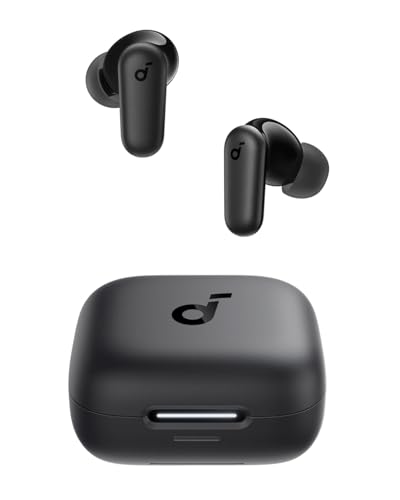
Ear buds Soundcore P30i by Anker Noise Cancelling Earbuds, bluetooth
Buy Now →
Headphones Soundcore by Anker Q20i Hybrid Active Noise Cancelling, Wireless Over-Ear Bluetooth,
Buy Now →(affiliate)
Tip #5: Secure Your Mobile Payment and Credit Card Readers
If your business accepts payments on the go—whether you’re a food truck owner, a mobile service provider, or a consultant who invoices in person—your credit card readers and payment devices need to be tracked and secured just like any other piece of sensitive equipment. A lost or compromised card reader puts your customers’ financial information at risk and could expose your business to serious liability.
Steps to secure your payment devices:
Maintain a written log of every card reader or payment device.
Document the serial number, who it’s assigned to, and when it was issued. This creates accountability and makes it easy to track if something goes missing.
Collect payment devices before vacations or extended absences.
When an employee will be out of the office, have them turn in their card reader. Devices left unattended in cars, bags, or homes are much more vulnerable to loss or theft.
Use encrypted card readers.
Upgrade to encrypted “cubes” or chip readers that protect transaction data. Look for PCI-compliant devices (Payment Card Industry standard), which ensure they meet security requirements for handling credit card information. Popular options from Square, Clover, and PayPal all offer encrypted readers.
Never store customer credit card information on personal devices.
If a customer’s payment doesn’t go through, never write down their card number to try again later. Use your payment processor’s secure system to handle retries.
Keep payment software updated.
Just like your other business apps, make sure your payment processing app is always running the latest version. Updates often include critical security patches.
Bonus: Quick-Start Security Checklist
Feeling overwhelmed? Don’t worry—you don’t have to do everything at once. Start with these high-impact actions that you can knock out this week:
- Set a strong password or PIN on every device you use for business. Purchase LastPass and start saving your passwords and usernames there.
- Enable two-factor authentication (2FA) on your email, banking, and social media accounts.
- Write down a list of every device and app that has access to your business data.
- Order a privacy screen (affiliate) filter for your laptop and phone.
- Turn off auto-connect for Wi-Fi and Bluetooth on all devices.
- Download a reputable VPN app to use when you need to connect to public Wi-Fi.
- Set up remote wipe on your phone and laptop.
Take the First Step Today
Mobile security doesn’t have to be complicated or expensive, but it does need to be intentional. As a small business owner or solopreneur, your data, your clients (affiliate)’ trust, and your reputation are all on the line every time you open your laptop at a coffee (affiliate) shop or check your bank balance on your phone.
The five tips in this post will give you a strong foundation, but they’re just the beginning. Once you start paying attention to mobile security, you’ll likely notice other areas where your business could be more secure. That’s a good thing—it means you’re thinking like a security-conscious business owner.
Have questions about securing your small business on the go? Drop them in the comments below, or visit the frequently asked questions, and I’ll do my best to get you an answer or point you in the right direction. And if you found this helpful, share it with a fellow business owner who could use these tips too!
Want more practical tips for running a more organized and secure small business? Subscribe to our mailing list and never miss a post.
General sign up newsletter
Subscribe to stay in touch.
Frequently Asked Questions
We know mobile security can feel overwhelming, especially when you’re focused on running your business. Here are answers to the questions we hear most often from small business owners and solopreneurs like you.
Absolutely! A device policy isn’t just for teams—it’s a personal accountability tool. Writing down which devices you use for business, what security measures are in place, and what you’ll do if a device is lost or stolen gives you a clear plan to follow in an emergency. It also prepares you for future growth. If you bring on a contractor or employee down the road, you’ll already have a framework in place.
A mobile hotspot gives you a private internet connection through your cellular provider, so you’re not sharing a network with strangers. A VPN encrypts your data so that even if someone intercepts your connection, they can’t read it. Ideally, you’d use both for maximum protection, but if you can choose only one, a mobile hotspot is the better initial investment because it eliminates the need for public Wi-Fi entirely.
Free antivirus programs like Avast or AVG provide basic protection and are better than nothing. However, paid solutions typically offer more comprehensive features, such as real-time threat detection, firewall protection, ransomware protection, and dedicated customer support. If your devices handle client data, financial information, or sensitive business files, the added protection of a paid program is worth the investment—usually $30–$80 per device per year.
For iPhones and iPads, enable Find My iPhone through your iCloud settings. And, for Android devices, make sure Find My Device is turned on in your Google account settings. For laptops, Windows offers a built-in Find My Device feature, and Mac users can use Find My Mac through iCloud. Once enabled, you can log into the corresponding website from any other device and remotely erase your data if your device is lost or stolen. Test it once to see how it works before you actually need it.
More questions and Answers
Two-factor authentication adds a second step to your login process beyond just your password. After entering your password, you’ll also need to verify your identity with something like a text message code, an authentication app (like Google Authenticator or Authy), or a fingerprint. This means that even if someone steals your password, they still can’t access your account without that second factor. Enable 2FA on every account that offers it, especially email, banking, and social media.
Privacy screens do slightly reduce brightness and can add a subtle tint to your display when viewed straight on. However, most high-quality filters from brands like 3M are designed to minimize this effect. You’ll barely notice the difference during normal use, and the trade-off is well worth it when you consider the risk of someone reading your sensitive information over your shoulder in a public space.
Using a personal phone for business is common for solopreneurs and small business owners, and it can be done safely with the right precautions. Make sure you have a strong passcode or biometric lock enabled, keep your operating system and apps updated, install antivirus software, and use a VPN when on public networks. If possible, consider separating your business and personal data using your phone’s built-in work profile features (available on most newer Android and iPhone models).
Security experts now recommend using strong, unique passwords for each account and changing them only when there’s a reason to—such as a known data breach or a lost device—rather than on a rigid schedule. The most important step is using a password manager like LastPass, 1Password, or Bitwarden to generate and store complex passwords so you don’t have to remember them all. This is far more effective than reusing simple passwords and changing them every 90 days.
Here are more questions and answers.
Act fast. Start by changing the passwords on all affected accounts immediately, beginning with your email and banking accounts. Enable 2FA if you haven’t already. If a device is lost or stolen, use remote wipe to erase it.
Notify your bank and credit card companies if your financial data may be at risk.
Check your accounts for unauthorized activity.
If client data was involved, you may have a legal obligation to notify affected clients depending on your state’s data breach laws.
Document everything, and consider consulting with an IT security professional to assess the full extent of the breach.
Start with the free and low-cost steps that have the biggest impact. Set strong passwords on all devices, enable two-factor authentication on your most important accounts, and turn off auto-connect for Wi-Fi and Bluetooth. These cost nothing, significantly reduce your risk, and save battery life while traveling, since your device will not be searching for a signal.
When you’re ready to invest a little, a privacy screen filter ($20–$60) and a VPN subscription ($5–$15 per month) are excellent next steps. Build your security habits gradually—even small improvements make a meaningful difference.
Have a question that’s not listed here? Leave it in the comments below, and I’ll do my best to get you the answer or point you in the right direction!
RELATED POSTS: