If your service-based business has been around for a while, you probably have several before-and-after photos without an accompanying digital file. To get these photos onto a digital device, you will need to scan them. But spending time scanning photos takes too long. As a small business owner, we don’t have the luxury of taking the time to do this task. Today, I am sharing a quick way to scan your before-and-after photos using an app on your iPhone or Android device. The free app is PhotoScan by Google Photos. It will totally help you get those amazing before-and-after photos back on your computer so you can share them on your blog or social media pages to support your marketing campaigns. Read along and learn how I used it for my business and get tips that I learned while using the app.
Estimated reading time: 5 minutes
Topics
Key Takeaways
- Use PhotoScan by Google Photos to quickly digitize your before-and-after photos.
- The app enhances images, removes glare, and lets you easily crop and rotate.
- Gather your photos first and ensure good lighting to avoid color issues.
- Free up storage on your device before scanning, as photos can take up space.
- Share your tips on using the PhotoScan app for small business marketing.
Clear up old before-and-after photos
Let’s get started and clear up the old before-and-after physical picture clutter and make them digital!!!
When I was doing a lot of home organizing years ago digital devices, I needed to bring a camera to get before and after photos from my clients (affiliate)‘ transformations. Most of the time, I got a CD of the photos, but the CDs would get damaged, or the images weren’t good enough on the digital copy to use over the years. I needed an alternative for these great physical pictures.
Then, one day my tech guy (AKA my husband) told me about an app from Google Photos called PhotoScan. This gave me an easy way to quickly capture digital images of these physical photos. YAY!
What is the PhotoScan app by Google Photos, and where can I get it?
PhotoScan is a free feature in the Google Photos app. It lets you scan and save printed photos using your cellphone’s camera. It also makes photos more vibrant and eliminates glare. Plus, it crops the image when it detects edges. If you need to rotate images, you can do that right on the screen before saving them.
You can get it in the App Store and Google Play Store for FREE. Here are the links below.
In the Google Play Store: PhotoScan by Google Photos
In the App Store: PhotoScan by Google Photos
Tips on Using PhotoScan by Google Photos
Below are some tips on how to use the app, based on my experience.
Use bright lighting, because some images may come out orange if a shadow is nearby when you take a picture.
Use a steady hand when taking the corner shots.
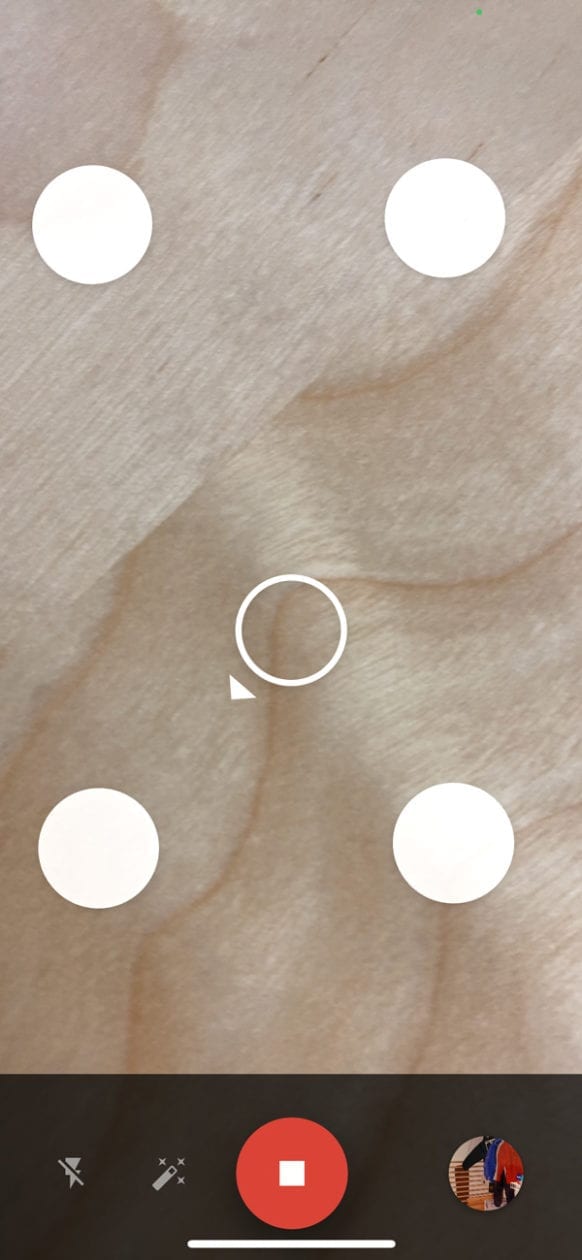
You will need to take pictures of each corner. See the image below. When you move to the next circle, you will hear a camera shot sound. Then move to the next one, and so on, until the app finishes scanning the corners of the photos.
Gather your business before-and-after photos first.
You can go through several photos at once, so have them ready before you start. It is a quick process.
You can also take pictures of documents you created for clients (affiliate) as long as they do not share personal confidential information on them.
Clear up storage space on your device before trying this app.
Photos can take up a good amount of space on your device. After you add the images to another device like your computer, you can delete them from your phone if you do not want them there.
Keep in mind, if your business physical photo is blurry, it will not be clear when you scan it through this app.
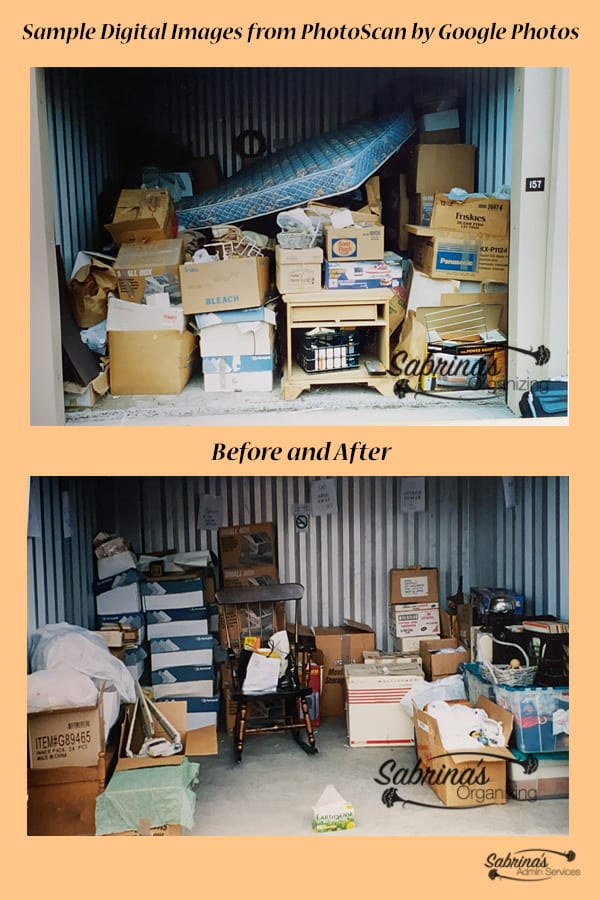
Well, there you have it! What are you waiting for? Try this free App today! I am not getting paid for sharing this app. I love it that much. Below is an image so you can see how well this app works with my physical photos. It is amazing! Check it out!
And don’t forget to organize these digital photos as well by visiting my post: How to Organize Your Small Business Images
Now, it’s your turn. Have you used this app for your small business? Please share your tips or tricks on using this app. I would love to hear from you.
Below are items from Amazon (affiliate). You can buy them by clicking through on the images. Please note: I will receive a commission if you purchase something on Amazon (affiliate).com after clicking through the links below at no additional charge to you. =)
Related Posts: